Your starting point
Field boundary, machine combination and working width.

GEOFARM PRO / CONNECTED TOOLS
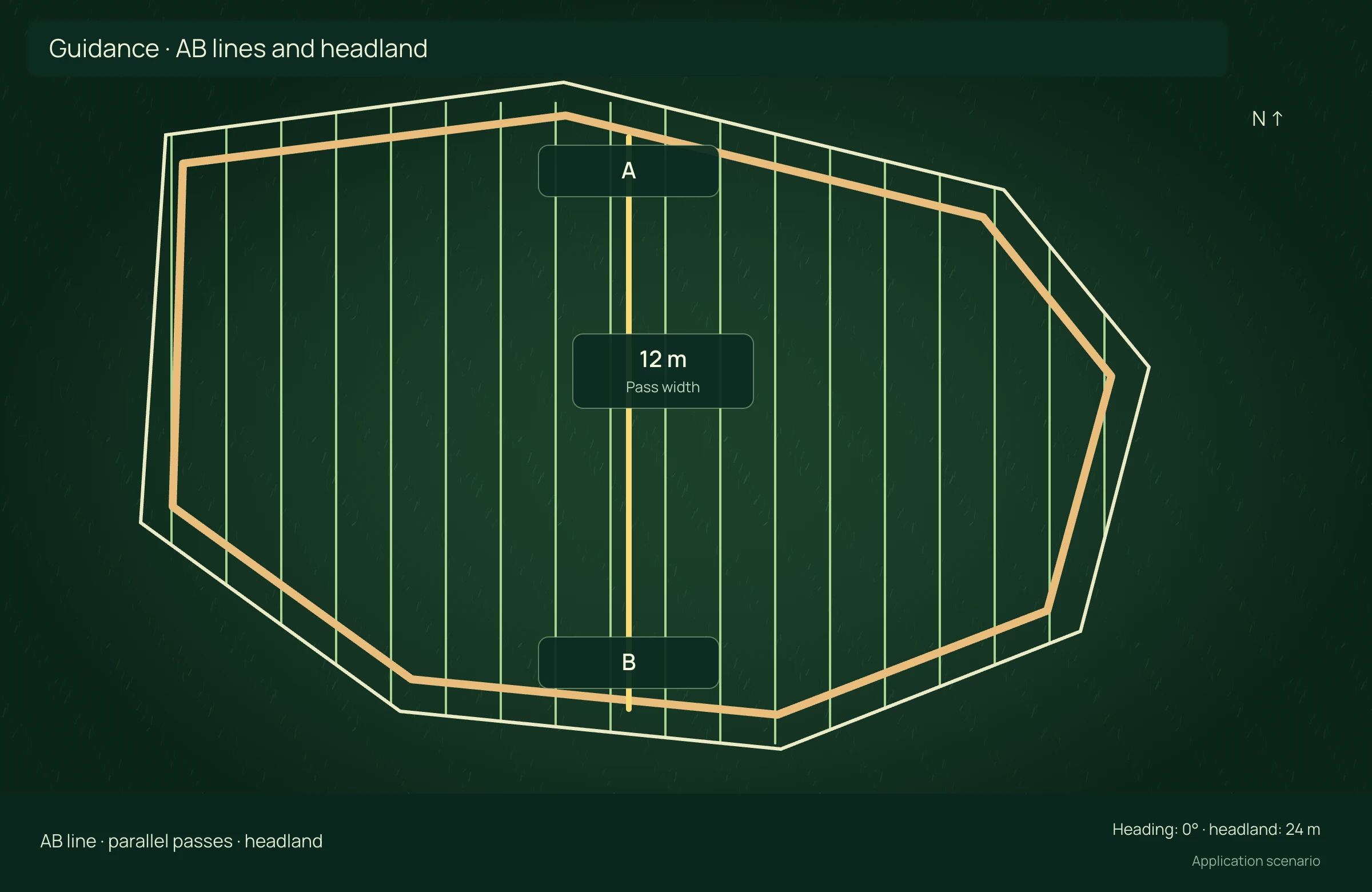
Design AB, curved, pivot and multiswath guidance from the field boundary. Adjust heading, working width, headlands and turning geometry to the machine and implement. Review the layout before export.
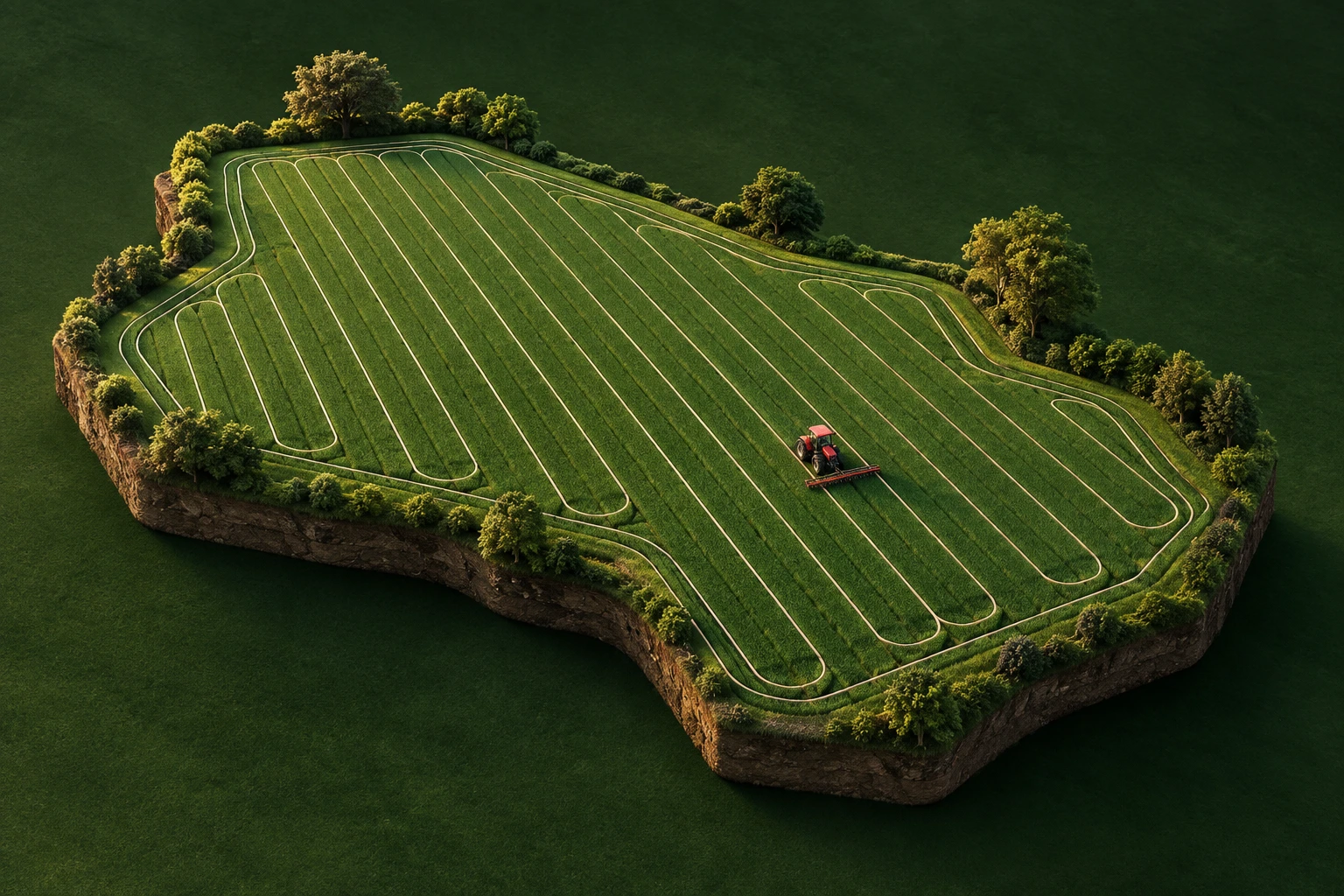
Field boundary, machine combination and working width.
Organize passes to help reduce overlaps and unnecessary turns.
Guidance project and report for review and export.
INSIDE THE TOOL
From data preparation to final delivery, explore the controls that bring precision to planning and connect every stage of your work.
Choose a guidance strategy for the field geometry: straight lines for parallel passes, curves to follow references and multiswath for distinct trajectories.
Compare working directions to prioritize long passes, edge alignment or wind and light references. Heading connects the layout to the operation’s objective.
Enter actual implement coverage and adjust overlap or initial offset. These settings determine how passes cover the field.
Match guidance geometry to the equipment combination. Set turning radius, curve limits and headlands to prepare transitions between passes.
Reuse references such as contours and terraces, then tune smoothing and segment joining to organize continuous paths.
Review time, turns and geometry together. Save the project and select the output profile to bring guidance into operations.
APPLICATION SCENARIO
A team needs to organize planting in an irregular field. The project allows review of heading, headlands and turning space before sending guidance to the autosteer terminal.
PRECISION YOU CAN MEASURE
Design guidance lines, headlands and turns in GeoFarm Pro and deliver the plan to a compatible guidance system. Compare seed or other applied input costs and machine hours on the same area.
One application with the same area, speed and rate. Fuel is already included in hourly cost. No yield increase included.
ECONOMIC COMPARISON
Enable JavaScript to calculate this scenario.
Editable example per campaign or project. Enter local costs and the share of software, correction signal, equipment and services used in this scenario. Results are estimated from inputs; defaults are not research averages. Do not add benefits from studios representing the same operation.
Worked area = net area × (1 + reapplication/100). Hours = worked area ÷ (width × speed ÷ 10 × time efficiency/100). Cost = worked area × input/ha + hours × hourly cost. Time efficiency covers turns and stops, excluding overlap already counted.
Net benefit = conventional cost − precision cost, including technology. Net return on technology = net benefit ÷ allocated technology cost × 100; displayed only when this cost is greater than zero. Only described components are compared, not the full crop budget.
Explore scenarios, track the effect of each input and export the comparison to discuss with your team.
References support the agronomic mechanisms. Example values are editable assumptions, not percentages attributed to the studies.
ONLINE AND DESKTOP · WINDOWS AND macOS
From a connected environment to planning with local files: choose the work profile that suits your team and operation.
Access the platform in your browser and connect information, analysis and deliverables in one workspace.
Organize files and projects on your computer, prepare basemaps and bring planning into your field routine.
For teams that center technical work on Windows workstations and value organized files, equipment and projects.
Talk to our team to define the right configuration for your online or offline operation.
Choose my solution ↗CONTINUE THE WORKFLOW
LET’S TALK ABOUT YOUR OPERATION