Your starting point
Boundary file, map drawing or a reused boundary.

GEOFARM PRO / CONNECTED TOOLS
Import, draw or reuse boundaries, organize references and save the field limit. Use the same geometry across studios to clip analyses and keep projects consistent.
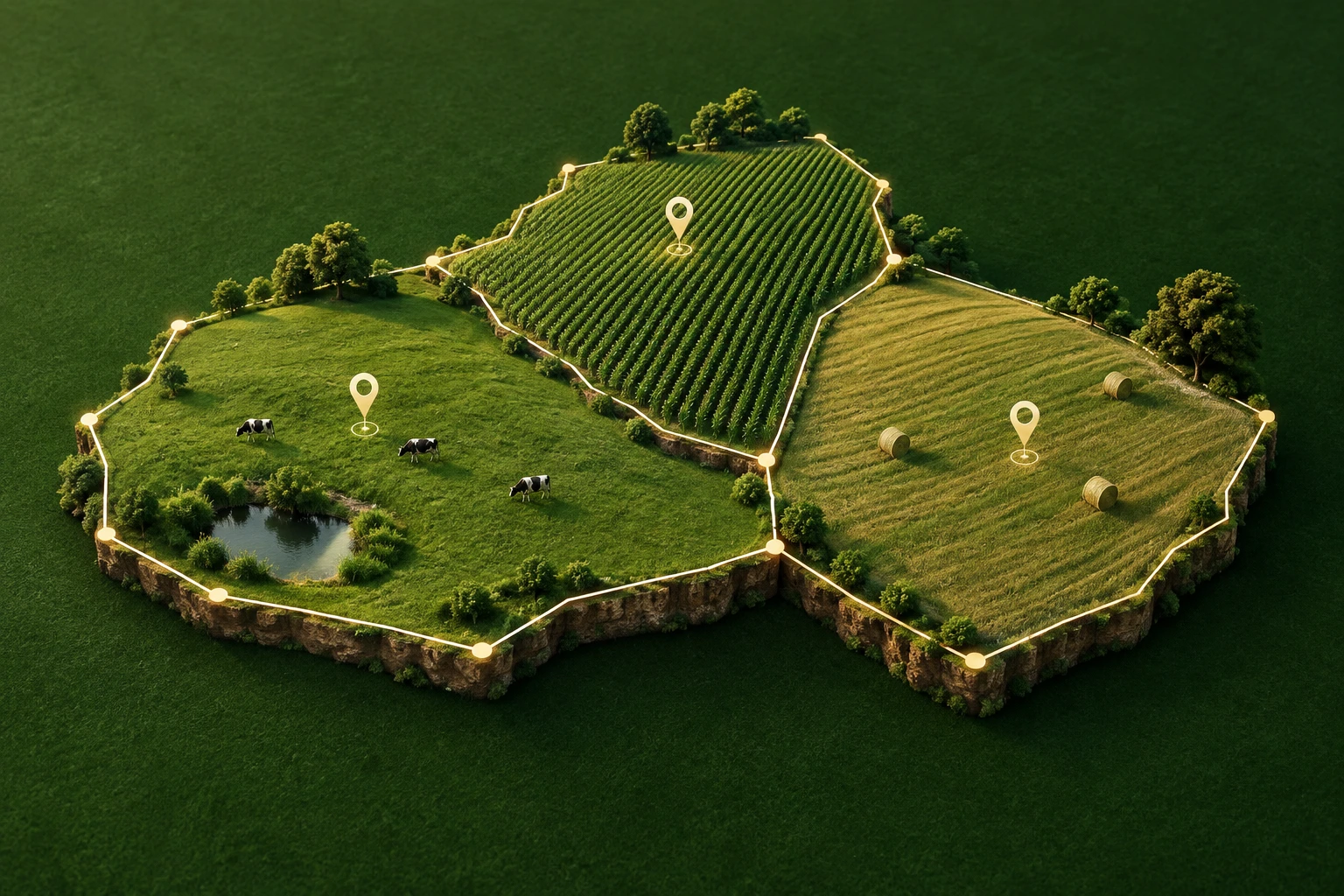
Boundary file, map drawing or a reused boundary.
Avoid redefining the area for every analysis and keep a shared reference.
Georeferenced boundary associated with the farm structure.
INSIDE THE TOOL
From data preparation to final delivery, explore the controls that bring precision to planning and connect every stage of your work.
Choose an existing boundary, import a file or trace the perimeter on screen.
Identify the area with a name, references and association with the farm structure.
Adjust vertices and segments to keep the boundary consistent with the project.
Use the area as a reference for headings and draft working lines.
Save geometry and references to retrieve the area in new projects.
Apply the same perimeter to sampling, guidance and analysis for consistent deliverables.
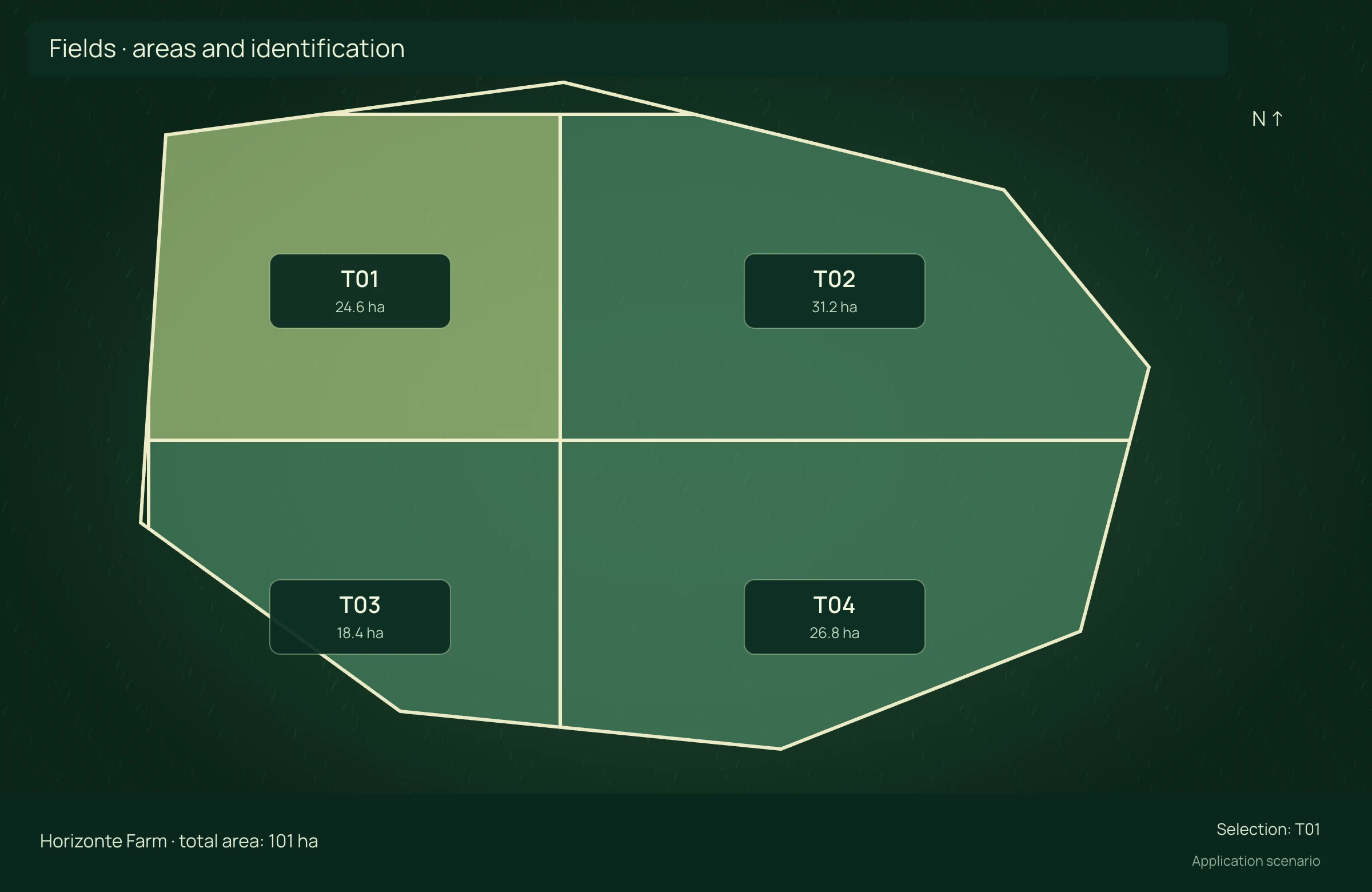
APPLICATION SCENARIO
When onboarding a client, the consultant organizes fields and verifies boundaries before using the studios. A consistent foundation avoids clipping analyses to different geometries.
PRECISION YOU CAN MEASURE
Centralize boundaries and areas to reduce repeated checks before input planning.
Compare the same workload. Rework cost includes only expenses and hours not already counted per item. Time saved is released capacity; it becomes cash savings when an actual expense is reduced.
ECONOMIC COMPARISON
Enable JavaScript to calculate this scenario.
Editable example per campaign or project. Enter local costs and the share of software, correction signal, equipment and services used in this scenario. Results are estimated from inputs; defaults are not research averages. Do not add benefits from studios representing the same operation.
Cost = items × minutes/item ÷ 60 × cost/h + rework events × cost/event. Net benefit = conventional cost − organized cost − allocated technology.
Net benefit = conventional cost − precision cost, including technology. Net return on technology = net benefit ÷ allocated technology cost × 100; displayed only when this cost is greater than zero. Only described components are compared, not the full crop budget.
Explore scenarios, track the effect of each input and export the comparison to discuss with your team.
ONLINE AND DESKTOP · WINDOWS AND macOS
From a connected environment to planning with local files: choose the work profile that suits your team and operation.
Access the platform in your browser and connect information, analysis and deliverables in one workspace.
Organize files and projects on your computer, prepare basemaps and bring planning into your field routine.
For teams that center technical work on Windows workstations and value organized files, equipment and projects.
Talk to our team to define the right configuration for your online or offline operation.
Choose my solution ↗CONTINUE THE WORKFLOW
LET’S TALK ABOUT YOUR OPERATION